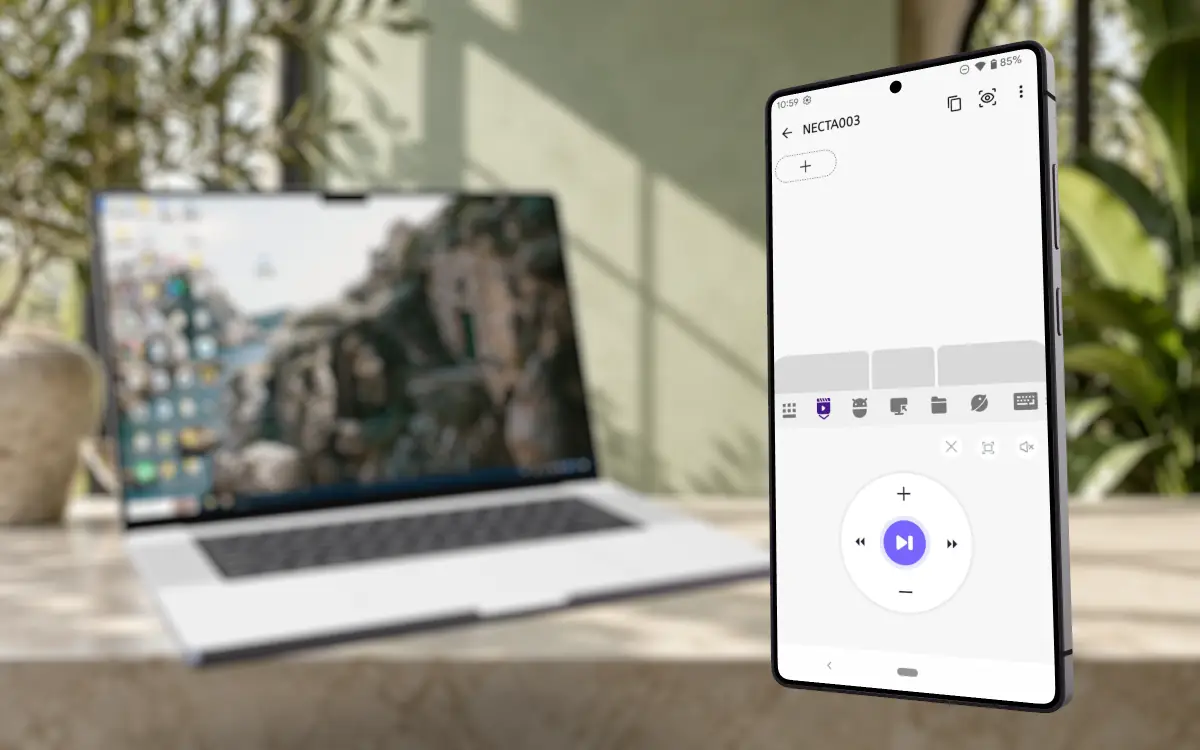
Your computer may be connected to speakers, a monitor, or even your TV. With WiFi Mouse, your phone can become a handy media remote, letting you control playback without walking back to the desk. Whether you are listening to Spotify, watching a video in VLC, PotPlayer, or Windows Media Player, streaming YouTube or Netflix in a browser, or running a PowerPoint or Keynote presentation, the controls stay in your hand.
Control Your Computer's Media from Nearby
When music or a movie is playing on your computer, the keyboard may be across the room. WiFi Mouse puts media controls on your phone so you can manage playback from a more comfortable spot.
Open the media remote feature in the app and use the available controls to manage supported playback actions — including play/pause, previous/next track, volume, mute, and fullscreen.
Why Use Your Phone as a Media Remote?
- Pause a video without leaving the couch.
- Skip to another track while listening to music.
- Adjust volume or mute the computer from your phone when it is connected to external speakers or a TV.
- Toggle fullscreen or exit fullscreen for desktop players and web players such as YouTube and Netflix.
- Advance or go back through PowerPoint and Keynote slides during a presentation.
- Keep playback and presentation controls close at hand during everyday computer use.
Supported Media Players and Web Players
WiFi Mouse sends standard media key commands to your computer, so the controls work with many desktop players and browser-based players. Commonly used apps include:
- Spotify — desktop app: play/pause, previous/next track, volume, mute.
- VLC media player — play/pause, previous/next, volume, mute, and fullscreen toggle.
- Windows Media Player — play/pause, previous/next, volume, and mute.
- K-Lite Codec Pack players (MPC-HC / MPC-BE) — play/pause, previous/next, volume, mute, and fullscreen.
- PotPlayer — play/pause, previous/next, volume, mute, and fullscreen.
- QuickTime Player — play/pause, volume, mute, and fullscreen.
- YouTube (web) — play/pause, volume, mute, and fullscreen toggle in the browser player.
- Netflix (web) — play/pause, volume, mute, and fullscreen toggle in the browser player.
Control PowerPoint and Keynote Presentations
WiFi Mouse also works as a presentation remote. While a slideshow is running on your computer, you can move between slides from your phone instead of standing at the keyboard.
- PowerPoint — start and end the slideshow, go to the next or previous slide, and use the standard presentation navigation keys.
- Keynote — advance or go back through slides during playback on macOS, using the same presentation controls.
This is useful for classroom teaching, conference talks, and remote meetings where you want to move freely while keeping control of the slides. Keep the presentation window active on the computer so the navigation keys reach the slideshow.
What You Need
- WiFi Mouse installed on your smartphone.
- The WiFi Mouse computer server installed and running.
- A local network connection between your phone and computer.
- A media player, browser, or presentation app open on your computer.
How to Control Media Playback
Step 1: Connect Your Phone and Computer
Open WiFi Mouse on both devices and connect your phone to the computer. Use the connection method available in your app version, including QR code pairing if supported.
Step 2: Open the Media Remote
Choose the media remote feature from the phone app. The layout may vary by app version and platform.
Step 3: Control Playback
Use the on-screen controls to perform supported actions such as play or pause, previous or next track, volume up or down, and mute or unmute.
Step 4: Toggle Fullscreen
Use the fullscreen control to switch the active player between fullscreen and windowed mode. This works for VLC, PotPlayer, K-Lite players, QuickTime, and browser players such as YouTube and Netflix when the player has focus.
Step 5: Control a Presentation
Start the slideshow in PowerPoint or Keynote, then use the presentation controls on your phone to move to the next or previous slide.
Step 6: Enjoy Your Media
Keep your phone nearby and control playback or slides as you watch a video, listen to music, present, or use your computer for entertainment.
Fullscreen and Mute Controls
Two controls are especially useful when you are away from the keyboard:
- Fullscreen / exit fullscreen — expand the active video to fill the screen, or return it to a window. Works with VLC, PotPlayer, K-Lite players, QuickTime, and with YouTube and Netflix in the browser.
- Mute / unmute — silence the computer instantly, then restore the previous volume when you are ready.
These actions are sent as standard media and display keys, so they follow the same rules as your keyboard's media keys. If a web player ignores them, click once on the video on the computer to give the player focus, then try again.
Great for Movies, Music, Presentations, and Everyday Entertainment
Watching on a TV
If your computer is connected to a television, you can sit back and use your phone to manage playback, switch to fullscreen, or mute the room without reaching for a keyboard.
Listening to Music
Change tracks, adjust volume, or mute while your computer plays music through Spotify, VLC, Windows Media Player, PotPlayer, or a connected sound system.
Presenting
Move through PowerPoint or Keynote slides from across the room, so you can speak, gesture, and change slides without returning to the desk.
Sharing a Room
When several people are watching or listening together, a phone-based remote can make it easier to manage playback from wherever you are sitting.
One Phone, More Ways to Control Your PC
WiFi Mouse is not limited to media playback or presentations. You can also use your phone as a wireless mouse or keyboard, so you can switch between navigation, typing, and media controls without keeping several accessories nearby.
Try WiFi Mouse on Your Phone
Install WiFi Mouse on your phone and computer, connect them over your local network, and control your computer from a distance.
Download WiFi Mouse