
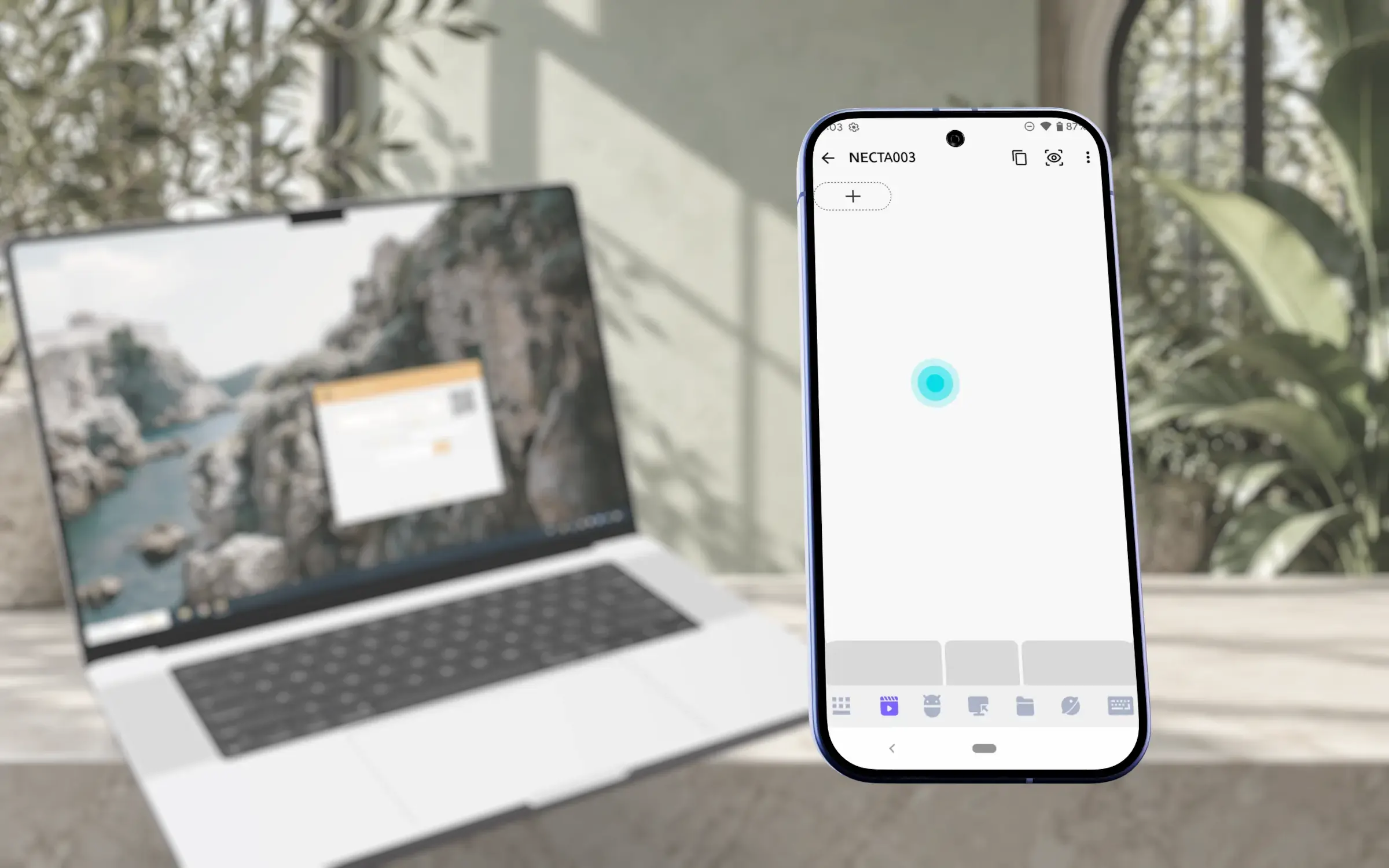
Your phone can do much more than make calls or send messages. With WiFi Mouse, it can also become a convenient wireless mouse for your Windows PC or Mac. Move the cursor with your finger, click, scroll through pages, and control your computer from a comfortable distance.
Your Phone Can Be a Mouse, Too
Imagine sitting on the couch and wanting to pause a video, browse a webpage, or move through a presentation. Instead of reaching for your computer, you can use the phone already in your hand.
WiFi Mouse turns your smartphone into a wireless control surface for your computer. Its touchpad-style interface lets you move the pointer with familiar finger gestures.
Why Use Your Phone as a Wireless Mouse?
- Control from a distance: Use your computer while sitting back from your desk.
- Convenient navigation: Move the pointer, click, and scroll from one place.
- A handy backup: Keep basic computer control available when your physical mouse is out of reach.
- More control options: Use additional features such as Air Mouse where supported.
What You Need
- WiFi Mouse installed on your smartphone.
- The WiFi Mouse computer server installed and running on your Windows PC or Mac.
- A local network connection that allows your phone and computer to communicate, typically the same Wi-Fi network.
How to Turn Your Phone into a Wireless Mouse
Step 1: Install WiFi Mouse on Your Phone
Install WiFi Mouse from the app store for your device, then open the app.
Step 2: Install the Computer Server
Download and install the WiFi Mouse server on your Windows PC or Mac. Launch it and keep it running while you use the phone app.
Step 3: Connect Your Phone to Your Computer
Open the connection screen in the phone app and select your computer when it appears. If your version offers QR code pairing, you can also scan the code shown by the computer.
Step 4: Start Using the Touchpad
Once connected, move one finger across the touchpad area to move the cursor. Tap to click, and use the available gestures or controls for scrolling and other mouse actions.
More Than a Basic Touchpad
Touchpad Controls
Use familiar touch gestures to move the pointer and navigate your computer.
Mouse Buttons and Scrolling
Use the app's mouse buttons and scrolling controls for common desktop actions such as selecting items, opening links, and moving through long pages.
Air Mouse
On supported devices and with the relevant Pro feature, Air Mouse lets you control the pointer by moving your phone. It can be useful for presentations or situations where you want to point without sliding your finger across the screen.
When Is a Wireless Phone Mouse Most Useful?
- On the couch: Control a PC connected to a TV without keeping a mouse beside you.
- During presentations: Move the pointer or navigate from a more comfortable position.
- While travelling: Use your phone when a separate mouse is inconvenient to carry.
- As a backup: Get basic pointer control when your regular mouse is unavailable.
One App for More Ways to Control Your Computer
A wireless mouse is just one way to use WiFi Mouse. Depending on the features available in your version, you can also use your phone as a keyboard, control media playback, and access other computer-control tools.
Try WiFi Mouse on Your Phone
Install WiFi Mouse on your phone and computer, connect them over your local network, and control your computer from a distance.
Download WiFi Mouse