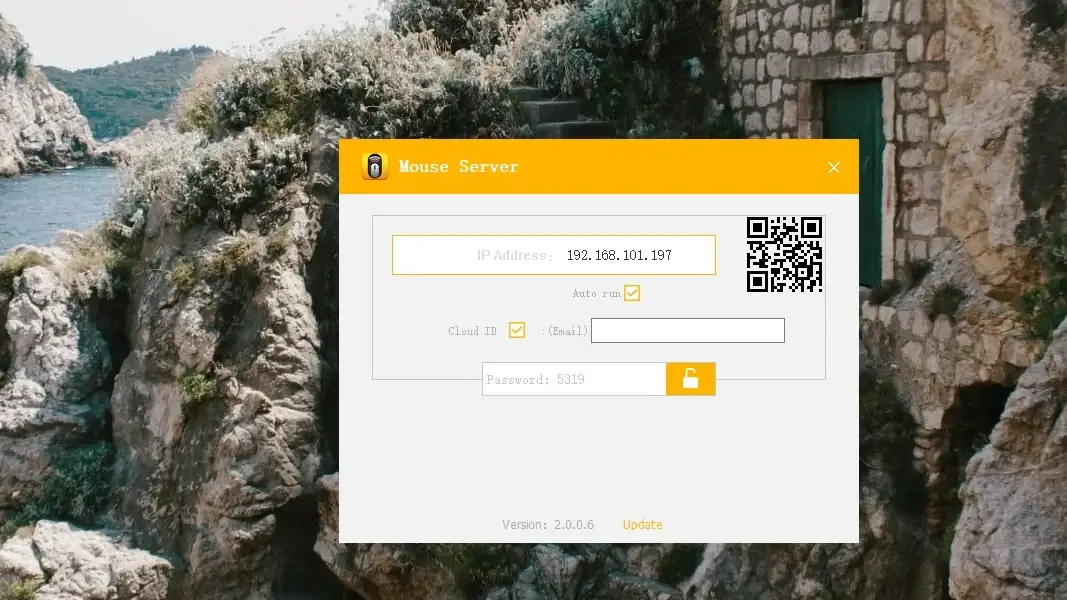
Connecting your phone to your computer should be straightforward. WiFi Mouse supports QR code pairing so you can scan the code displayed by the computer instead of manually entering connection details.
Why Use QR Code Pairing?
Finding the right computer in a list or entering network information can be inconvenient, especially when several devices are nearby. QR code pairing offers a simple alternative: display the pairing code on your computer, scan it with your phone, and follow the connection prompt.
This QR code is used to pair WiFi Mouse with your computer. It is different from barcode or QR scanning tools that read codes as data.
What You Need
- WiFi Mouse installed on your phone.
- The WiFi Mouse computer server installed and running on your PC or Mac.
- Your phone and computer connected to a network that allows local communication.
How to Connect Using QR Code Pairing
Step 1: Open WiFi Mouse on Your Computer
Launch the WiFi Mouse server and open its QR pairing screen. Keep the QR code visible on the display.
Step 2: Open the App on Your Phone
Start WiFi Mouse on your phone and choose the QR code scan or pairing option.
Step 3: Scan the Code on Your Computer
Point your phone camera at the QR code displayed by the computer. Hold the phone steady until the app recognizes it.
Step 4: Confirm the Connection
Follow any confirmation shown in the app. When the connection is established, you can start using the available WiFi Mouse controls.
What If QR Code Pairing Doesn't Work?
- Check the server: Make sure the computer server is open and displaying its current QR code.
- Check the network: Confirm that your phone and computer can communicate over the local network. Guest Wi-Fi or network isolation settings may block device discovery.
- Improve scanning conditions: Increase screen brightness, clean the camera lens, and keep the full QR code in view.
- Restart pairing: Reopen the pairing screen and scan the newly displayed code.
- Check firewall permissions: Make sure the computer's firewall is not blocking WiFi Mouse.
Start Controlling Your Computer
After pairing, open the feature you want to use — such as the touchpad, keyboard, or media remote. QR code pairing helps with the initial connection; it does not change the controls available in the app.
Try WiFi Mouse on Your Phone
Install WiFi Mouse on your phone and computer, connect them over your local network, and control your computer from a distance.
Download WiFi Mouse