
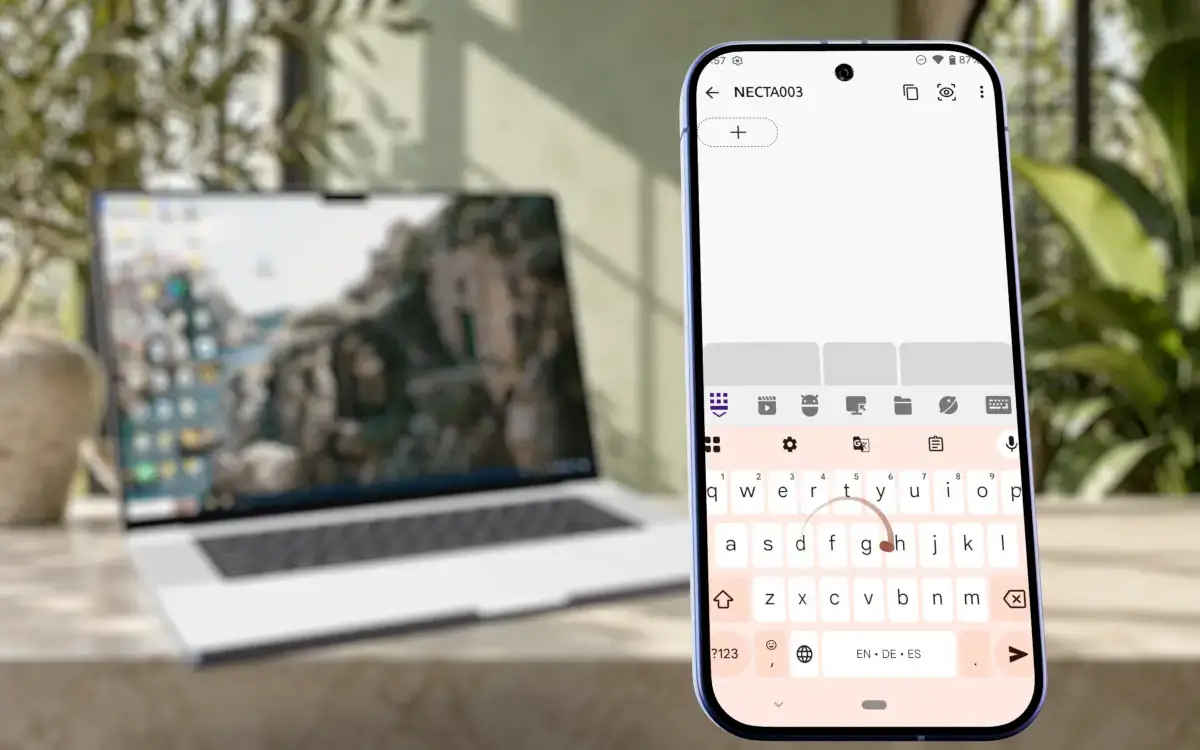
Your phone's touchscreen can do more than move a cursor. With WiFi Mouse, you can use your smartphone as a wireless keyboard and type on your computer from a nearby location.
Why Use Your Phone as a Wireless Keyboard?
A phone keyboard is useful when you need to enter a short search, reply to a message, fill in a text field, or control your computer without sitting directly at the desk.
- Type from a comfortable distance.
- Enter text without reaching for a physical keyboard.
- Use your phone when a keyboard is unavailable or inconvenient.
- Combine typing with the app's mouse and touchpad controls.
What You Need
- WiFi Mouse installed on your phone.
- The WiFi Mouse computer server installed and running on your PC or Mac.
- A local network connection that allows the two devices to communicate.
How to Use Your Phone as a Keyboard
Step 1: Connect to Your Computer
Open WiFi Mouse on your phone and connect to the computer running the WiFi Mouse server. Use the connection method offered by your version, such as selecting the discovered computer or scanning its pairing QR code.
Step 2: Open the Keyboard Feature
Choose the keyboard feature in the phone app. The keyboard layout and available keys may differ between platforms and app versions.
Step 3: Start Typing
Tap the text field or keyboard area in the app and type. Text is sent to the connected computer, where it appears in the active input field when the target application is ready to receive it.
Step 4: Use Available Keyboard Controls
Use any additional keys or controls shown in the app for common computer input tasks. Check the app interface for the controls supported by your current version.
More Than Text Input
Keyboard Controls
Depending on your version, the keyboard interface may include useful computer keys and shortcuts in addition to standard text entry.
Voice Typing
You may also be able to enter text using voice input provided by your phone's keyboard or speech input service. Availability, language support, and behavior depend on your device, operating system, keyboard, and selected input service.
Combine Your Wireless Keyboard with a Mouse
Typing is even more convenient when you can move the pointer without switching devices. WiFi Mouse also offers touchpad-style mouse control, so your phone can handle both text entry and cursor movement.
Use the keyboard when you need to type, then switch to the touchpad when you need to click, scroll, or navigate.
Try WiFi Mouse on Your Phone
Install WiFi Mouse on your phone and computer, connect them over your local network, and control your computer from a distance.
Download WiFi Mouse